
AccessMyIQ Support: Phone, Login and Merchant Statements


Need help with AccessMyIQ? Contact Swipesum’s payments support team at (844) 356-9905 or support@swipesum.com. We help merchants work through login questions, statements, deposits, reporting and provider escalations. AccessMyIQ is Worldpay’s iQ merchant reporting portal; the contacts above reach Swipesum, your independent payments support team.
Make Swipesum your first call when a payment problem crosses systems. Our team works across backend processors, gateways and business software, helping identify who needs to act and coordinating the next steps. You do not need to assume a processor change is the answer before asking for help. Account access and changes still depend on your permissions, provider and support arrangement.
AccessMyIQ support phone, email and merchant login
- Swipesum support: (844) 356-9905 and support@swipesum.com for merchant payment questions and coordinated troubleshooting.
- Official merchant login: accessmyiq.com. Use Worldpay’s portal to sign in; do not send your password to a support team.
If you are unsure which route applies, tell Swipesum what you are trying to do and where the process stops. We can help distinguish a reporting question from a software, gateway, processor or account-permission issue.
What is AccessMyIQ?
AccessMyIQ is a Worldpay merchant portal for payment reporting and account information. Depending on your account and permissions, you can use it to find merchant statements, research transactions, review settlement activity and access other reporting tools.
It is not a universal portal for every payment processor. Swipesum is backend agnostic; AccessMyIQ belongs to a specific provider environment. Worldpay’s account login directory also lists separate products, including ecommerce iQ and OmniFlex. Choose the portal associated with your actual merchant account. This guide is about merchant payments, not an unrelated consumer IQ-test subscription.
Why merchants use Swipesum as their payments support team
A login page cannot explain why a deposit differs from a batch total or coordinate a question between your POS vendor and processor. Swipesum brings payments people, software and provider relationships into the same conversation.
- Find the source of the issue: separate the portal view, transaction record, settlement and bank deposit.
- Coordinate providers: help connect the question to the team with the necessary system access or authority.
- Keep the work moving: document the issue, next action and escalation owner instead of leaving you to repeat the story across vendors.
- Review the wider setup: identify reporting, integration, account or support changes that fit how your business operates.
That is the value of a dedicated payments team alongside your provider. Swipesum support does not replace Worldpay’s authority over its accounts, and we do not ask you to share passwords or authentication codes.

How to sign in or recover access
- Open the official AccessMyIQ portal using HTTPS.
- Enter the username associated with the merchant account. The current sign-in flow begins with a username screen.
- If you do not know it, use Forgot username. For other access problems, follow Login help and the recovery options presented in your account’s sign-in flow.
- Complete any required identity or multifactor verification through the provider’s process.
If an account is locked, an administrator has left, or a verification method is unavailable, contact the authorized account administrator or provider support. Swipesum can help coordinate the request, but a support call does not itself authorize a reset or access change.
How to find merchant statements in AccessMyIQ
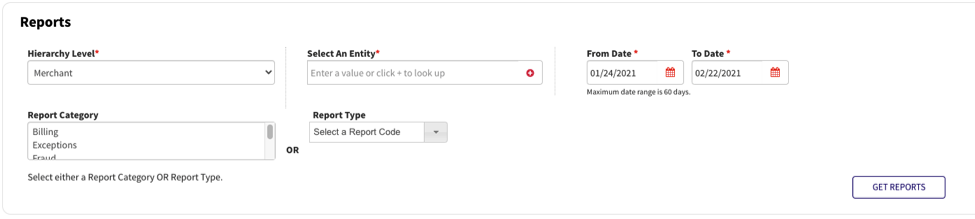
Open the reporting or statements area after signing in. In supported portal views, this appears under Reports & Statements → Reports. Select the correct merchant entity, statement period and statement/report type, then retrieve the available report. Labels and available menus can differ by permissions and account configuration.
If a statement is missing, check the merchant account and period first. A transaction-date filter is not necessarily the same as a monthly statement period. Ask your administrator whether your user has statement access before assuming the document has not been produced.
Once you have the statement, our merchant account fee guide explains the major cost categories. For a reviewed analysis, request a Swipesum statement audit. Any fee correction depends on the statement, agreement and provider’s findings; no fee is automatically eliminated merely by using a portal.
Reconciling batches, settlements and bank deposits
A batch total and a bank deposit can describe different stages of the same payment activity. Before escalating a mismatch, line up the merchant account, business date, settlement date and bank-posting date.
- Compare the same account and reporting period in each view.
- Check refunds, disputes, adjustments and fees that may affect the deposited amount.
- Separate authorized transactions from settled transactions.
- Check whether multiple locations or batches are combined into one deposit, or one day’s activity appears across deposits.
- Record the unexplained difference and the report or deposit references needed to investigate it.
Some portal views include Reconciliation Summary, Daily Totals and Transaction Research. Use the reports available to your account and keep the original exports. Swipesum can help trace the difference and coordinate a provider escalation when the available records do not explain it.
Multiple locations, users and mobile access
For multiple merchant accounts, first confirm which entities should appear under each user and who is authorized to approve access. Ask Swipesum to help organize the request with your administrator or provider. Account linking is subject to the relevant permissions and provider process; it is not guaranteed to be available immediately for every arrangement.
Use individual users and the access level each role needs. If mobile reporting is part of your account, verify the current app and supported features through Worldpay’s official resources. A mobile app may offer fewer functions than the browser portal.
What to include when asking Swipesum for help
Start with your business name, contact details, the task you are attempting, when the problem began and any non-sensitive error message. Tell us whether it affects one user, one location or several. For a reporting issue, identify the report and period. Our team can explain the appropriate secure way to provide additional account information if needed.
Do not email passwords, one-time codes, full card numbers or unredacted payment credentials. For a suspected outage, check Worldpay’s official status page and the status of your business software as well.
AccessMyIQ questions merchants ask
Is Swipesum the official AccessMyIQ help desk?
Swipesum is an independent payments team that helps merchants using AccessMyIQ. Worldpay operates the portal. We help diagnose questions and coordinate the provider or administrator actions required by your account.
Can Swipesum help if my current provider is not responsive?
Yes—contact us to discuss the issue and your arrangement. Our team can review the problem, help identify the right escalation route and explain the support scope available for your business. Access to a provider account still requires authorization.
Do I need to change processors to get help?
A processor change is not the starting assumption. Swipesum can evaluate support and operational requirements within your existing setup and explain which services fit the situation.
What is the best first step for a missing deposit?
Identify the account, batch or settlement, expected deposit and relevant dates. Contact Swipesum at (844) 356-9905 so we can help work through the records and determine the next action.
Get a payments team on your side
For help with AccessMyIQ, call (844) 356-9905 or email support@swipesum.com. For a new payments or ongoing support engagement, talk to the Swipesum payments team. Bring the problem you need solved; we will help establish the right next step.